Menus
One menu, the way your guests should read it.
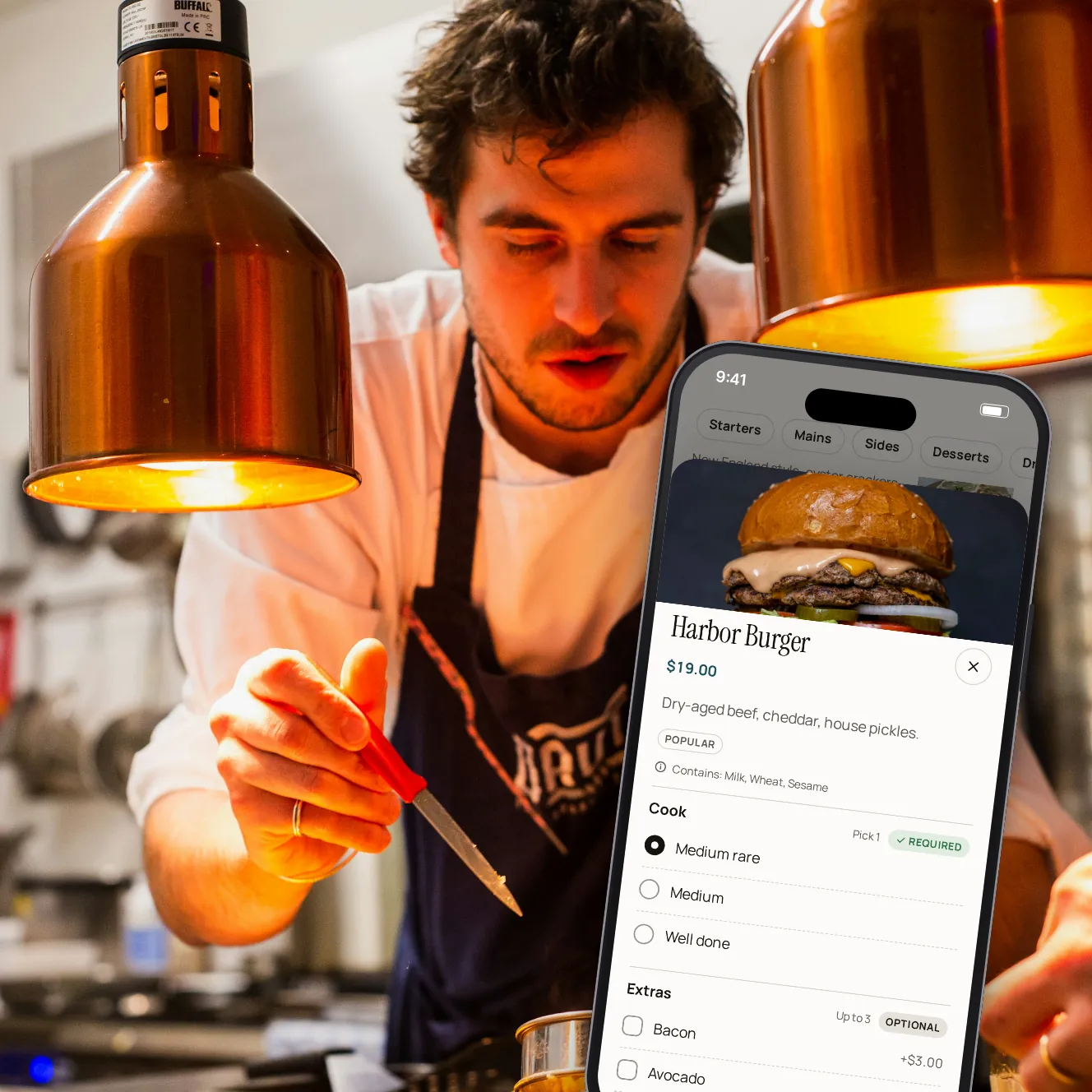
Items and prices come from your POS. Names, descriptions, photos, allergens and schedules are yours, and a POS sync never overwrites them. Guests see the menu that's being served right now, on the table's QR code and on your pickup page.
- 12
- allergens to mark on any item
- By the hour
- menus ordered only when they're served
- Any
- language you add a translation for
Less reprinting, fewer questions at the table.
Read from your POS
Sync the POS menu in one click. Items, prices and choices come across; the words and pictures you've added stay as they are.
Schedules
Brunch, lunch, happy hour, late night: a menu or a single item can be ordered only at the times you set. Outside them it's shown greyed, with when it's served.
Allergens and tags
Twelve allergens and tags such as vegan, gluten free, halal or spicy, shown on every item.
Sold out, in one tap
Mark an item sold out for now or hide it, and it can't be ordered. The POS can mark it unavailable too.
Photos and words
A photo, a description and a name guests understand, on each item.
In other languages
Add translations to your items, and guests switch the menu's language on their phone.
Setting up a menu.

Step 1 of 5
Your menus
Every menu, in the order guests see them, with when each is served.

Step 2 of 5
Categories and items
Build each menu from your POS items, category by category.

Step 3 of 5
Each item, your way
Photo, description, allergens, tags, a schedule and translations.

Step 4 of 5
Suggestions
Choose what to offer when a guest adds an item, and a few extras before they confirm.

Step 5 of 5
What guests see
The menu on their phone, with allergens, tags and the choices for each item.
The small things guests notice.
Required choices
Cooking, sides and extras from your POS, with the number guests must pick.
A side that goes with it
Suggest an item when a guest adds a dish or anything in a category. Only items with a photo are suggested.
Before they confirm
Up to five recommendations under a heading you choose.
PDF or link menus
Show a wine list or a drinks menu as a PDF or a link when you'd rather not list its items.
Read only, where you want
Keep the menu for reading in any area, and take orders in others.
Your questions
Do I have to type my menu in again?
No. Items, prices and choices come from your POS menu sync. You add the photos, descriptions, allergens and schedules.
Will a POS sync undo my changes?
No. The sync updates only what comes from the POS, such as prices. Your names, descriptions, photos, allergens, tags, translations and schedules stay.
Can I show a menu without listing every item?
Yes. Add a PDF or a link menu, and guests open it from the table.
Do guests need to order from the menu?
No. Show it for reading only, and let your servers take the order.
Does it write descriptions or translations for me?
No. You write them. Translations show for the languages you add.
Book a demo
Let's set it up for your restaurant.
Tell us about your restaurant and we'll walk you through Paytabl on a live demo bill: the guest's phone, the staff app and the dashboard, with your POS in mind.