Click and collect
Takeaway that's paid for before the kitchen starts.
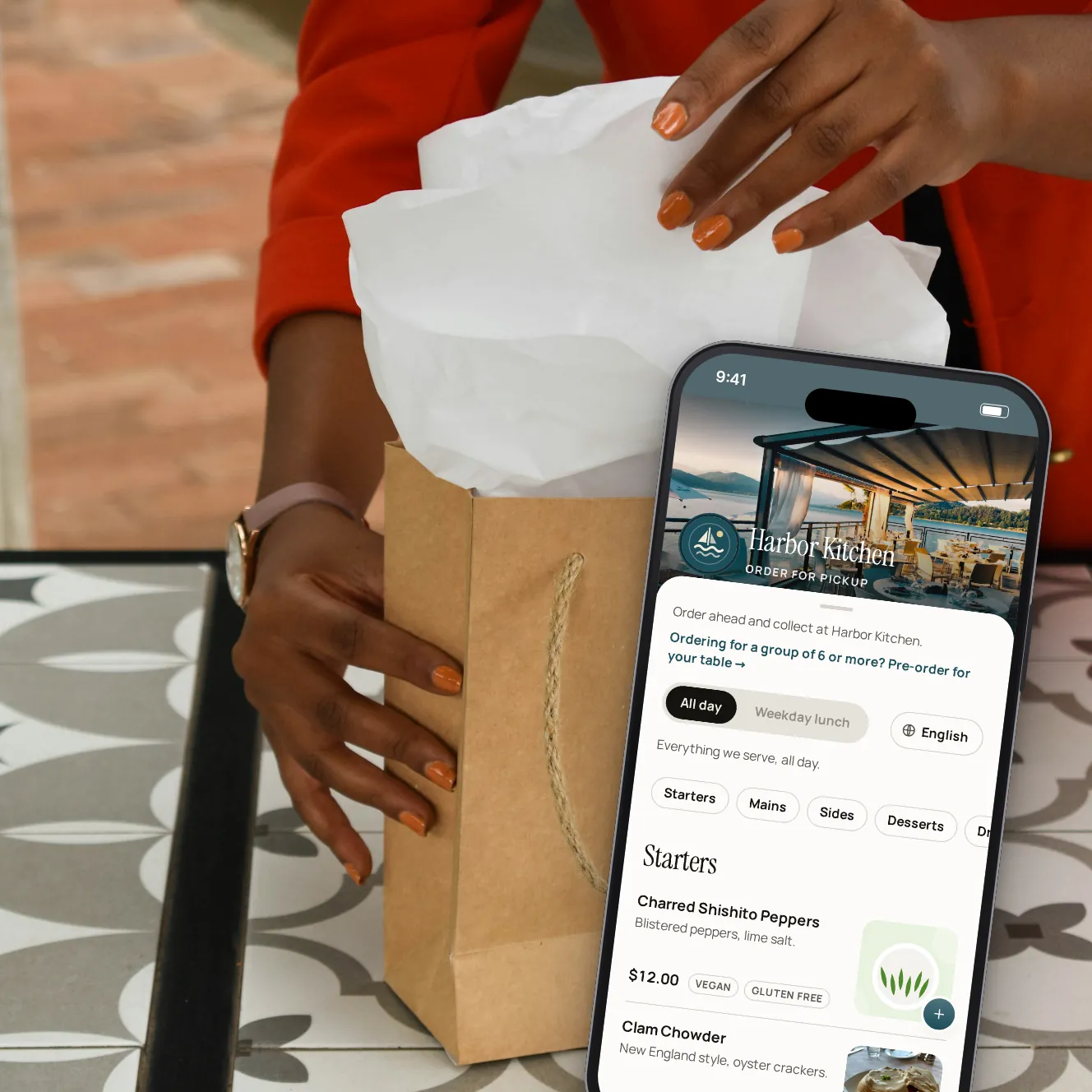
Put your pickup link on your website and Google profile. Guests order from your menu, pick a time that still has room and pay ahead. The order reaches your POS shortly before the pickup time, so it's fresh when they walk in.
Coming laterA text to the guest when the order is ready is coming later. Until then, their order page updates live.
- 15 min
- pickup windows, inside the hours you set
- Paid
- before the order reaches the kitchen
- 1 tap
- to pause new orders on a busy night
Pickup that fits your kitchen, not the other way round.
Slots you control
Choose your pickup hours, how much notice the kitchen needs and how many days ahead guests can book. The first slot offered is always at least your prep time away.
A cap per slot
Set the most orders a 15-minute window can take. Full windows show as full, and two guests can't both take the last place.
Paid up front
Guests pay with Apple Pay, Google Pay or a card before the order is placed, with the tip and the service fee shown first.
Sent when it should be
A scheduled order waits and goes to your POS a set number of minutes before pickup. A manager can send it early from the dashboard.
One list for the counter
Every pickup order in the dashboard, live: mark it preparing, ready and done. The guest's order page follows along.
Pause in one tap
Too busy? Pause pickup orders and your page says so instead of taking more. Resume when you're ready.
From the link to the counter.

Step 1 of 5
The guest opens your link
Your menu, with what's available right now, from a link on your website or Google profile.

Step 2 of 5
Picks a time and pays
Windows that are full or too soon aren't offered. A name and a phone number or email, then pay.

Step 3 of 5
Gets an order number
The order page shows the pickup time and number, and updates as the kitchen works.

Step 4 of 5
Your team sees it come in
New orders appear in the dashboard and alert the staff app. Mark each one ready when it is.

Step 5 of 5
You set the rules
Prep time, pickup hours, days ahead, the cap per slot and when orders go to the POS.
The details around each pickup.
Your menus, your schedules
The pickup page offers items on your pickup menus that are served now and at the pickup time chosen.
Sold out is respected
Items you mark sold out, or the POS says are unavailable, can't be ordered.
Suggestions at checkout
A side when a guest adds a dish, and up to five extras before they pay.
Notes for the kitchen
Guests can add a note to an item, such as an allergy or no onions.
Rewards and offers
Signed-in guests can use a loyalty reward or an offer on a pickup order, where your POS takes discounts. Guests sign in with a texted code, which is coming later.
Coming laterBig orders become pre-orders
The pickup page points large groups to your group pre-order page.
A text when it's ready
A message to the guest the moment you mark the order ready.
Coming later
Your questions
Does click and collect need a POS connection?
Yes. A pickup order goes to your kitchen as its own check on your POS, so it needs a POS that takes orders. Square is a confirmed partner and its connection is coming soon; until then, we'll show you every step on our demo restaurant.
How do guests find the pickup page?
Each venue has its own pickup link. Put it on your website, your Google profile and your social pages.
Can guests order for later in the week?
Yes, up to the number of days ahead you allow. Set it to 0 to take orders for today only.
What happens if a slot fills while a guest is paying?
The place is checked again as the payment starts. If someone else took it, the guest is asked to pick another time before anything is charged.
How is the guest told the order is ready?
Their order page updates live as you move the order along. A text when it's ready is coming later.
Book a demo
Let's set it up for your restaurant.
Tell us about your restaurant and we'll walk you through Paytabl on a live demo bill: the guest's phone, the staff app and the dashboard, with your POS in mind.